The Ultimate Mobile Vibe Coding Setup
It only took 10 years…
There is something magical about being able to create code and tinker with software “anywhere”. In 2010, I bought my first netbook and thought, “No way, I can program Arduino with this… I can configure Cisco gear with this… I can do ANYTHING!” The battery life was GREAT for the time (4 hours maybe?), and it could even run World of Warcraft.
Since then, I’ve experimented with a few different ideas on how to “do nerdy things” wherever I am:
- JupyterHub with some customizations that allowed me to self-host VSCode running in a browser
- Using VNC on an iPad connected to a remote desktop server
- Chrome Remote Desktop
These were OK, but I ran into a few common problems:
- Special characters, keyboard shortcuts, and UX designed for desktop did not translate well to a mobile keyboard
- Cramming a desktop environment into a netbook screen or Chromebook tab did not work well… it’s just too small
Enter Vibecoding
My home lab exists because I want to actually understand the technology that makes “engineering excellence” look easy.
- I want to understand how Argo works
- I want to understand how Helm works
- I want to understand how k8s works
The great thing about running this at home is that now my agents can too.
- Agents can create PRs
- PRs trigger container build jobs
- Merging a PR updates the deployed version of a container in my Helm charts
- ArgoCD auto-deploys those changes
And because it all lives on the lab network, the entire loop is reachable from my couch — or anywhere else — with nothing more than an iPad.
The Winning Setup
My new favorite thing has two parts:
- A dusty old stick PC
- An iPad
Setup the Linux Machine
This is where we will ACTUALLY be running Claude Code
- Install Ubuntu and configure SSH
- Configure
kubectlso that Claude can debug the cluster - Configure
ghso that Claude can check Actions workflows and merge PRs - Configure
moshso that SSH clients are “always” connected - Install Claude Code
- Create a custom service that runs
claude remote-controlat boot
The boot service
I want claude remote-control to come up automatically on boot, survive crashes, and stay reachable even if the SSH/mosh session drops. The trick is to run it inside a detached tmux session, and let systemd babysit that.
First, a small wrapper script that owns the tmux session. Drop this at /usr/local/bin/claude-rc-wrapper.sh and chmod +x it:
#!/usr/bin/env bash
set -euo pipefail

PROJECT_DIR="${HOME}/remote-claude"
SESSION_NAME="claude-rc"
LOG_FILE="${HOME}/.claude/rc-session.log"

mkdir -p "$(dirname "$LOG_FILE")" "$PROJECT_DIR"

# Kill any existing tmux session
tmux kill-session -t "$SESSION_NAME" 2>/dev/null || true

# Start tmux with claude remote-control inside it
tmux new-session -d -s "$SESSION_NAME" -c "$PROJECT_DIR" \
  "claude remote-control --remote-control-session-name-prefix minibox --verbose 2>&1 | tee -a $LOG_FILE"

# Wait for tmux to be alive
sleep 2
if ! tmux has-session -t "$SESSION_NAME" 2>/dev/null; then
  echo "Failed to start tmux session" >&2
  exit 1
fi

# Keep the systemd process alive as long as the tmux session is up.
# When claude exits, the session dies, this loop ends, and systemd
# can apply its Restart policy.
while tmux has-session -t "$SESSION_NAME" 2>/dev/null; do
  sleep 5
done
Then the systemd unit that runs it at boot. Drop this at /etc/systemd/system/claude-rc.service:
[Unit]
Description=Claude Code Remote Control (minibox)
After=network-online.target
Wants=network-online.target

[Service]
Type=simple
User=tommy
Group=tommy
Environment=HOME=/home/tommy
Environment=PATH=/home/tommy/.local/bin:/usr/local/bin:/usr/bin:/bin
ExecStart=/usr/local/bin/claude-rc-wrapper.sh
ExecStop=/usr/bin/tmux kill-session -t claude-rc
Restart=on-failure
RestartSec=10
TimeoutStartSec=60
TimeoutStopSec=15

[Install]
WantedBy=multi-user.target
Enable and start it:
sudo systemctl daemon-reload
sudo systemctl enable --now claude-rc.service
Now claude remote-control is always running, reconnects after crashes, and because it lives in tmux I can tmux attach -t claude-rc over SSH any time I want to peek at what the agent is doing.
Access Anywhere
Combining the above with an iPad and a keyboard case (I like this typecase Edge case), I can now:
- use the Claude iOS app to start a session anywhere
- use the Termius iOS app to connect directly to the host over SSH for the things Claude can’t/won’t handle
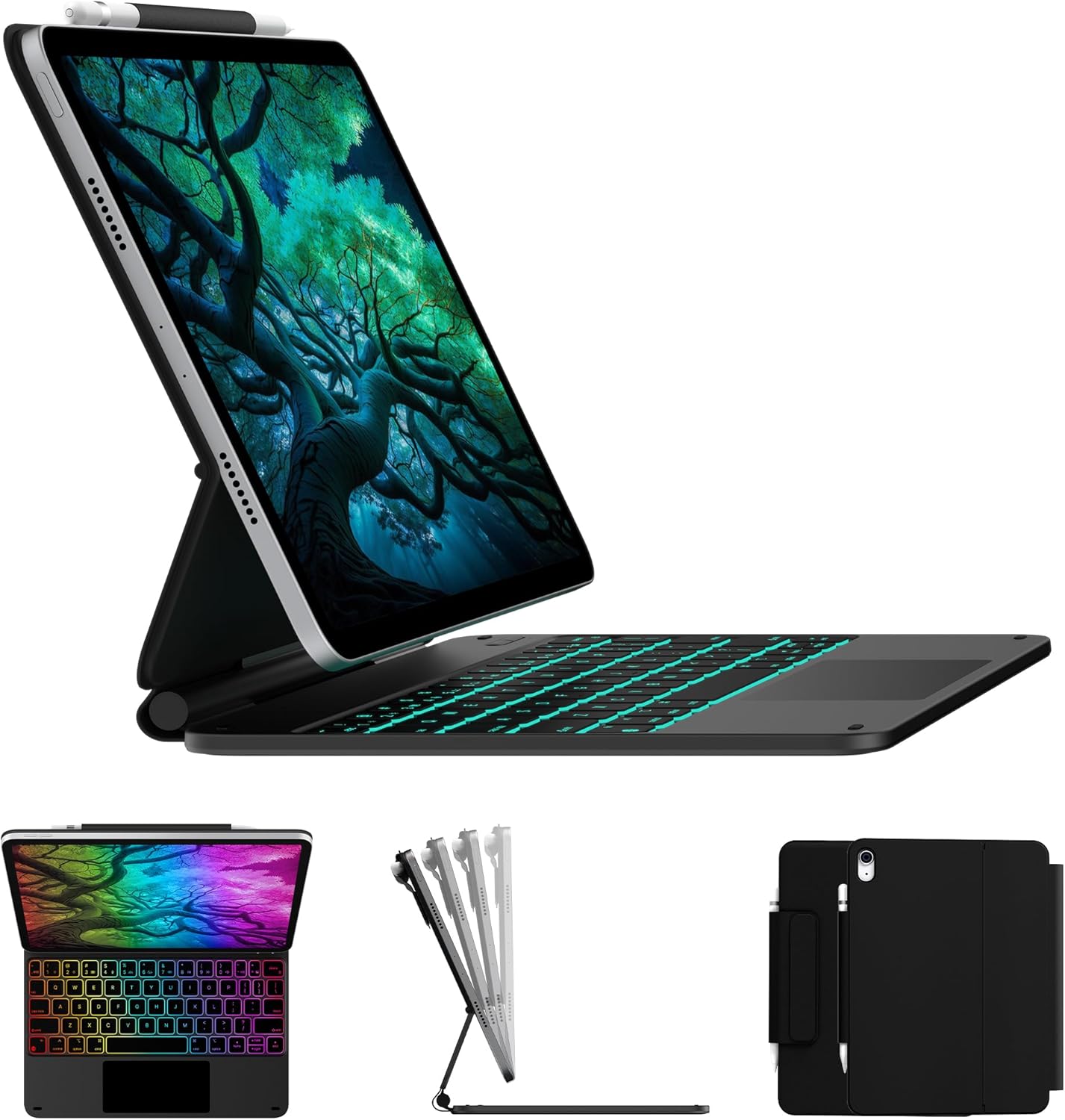
In practice this means I can kick off a refactor from the couch, watch the PR build and ArgoCD sync from my phone, and only drop into a real SSH session when something needs hands-on debugging. The trackpad and proper keyboard make the iPad feel close enough to a laptop that I stopped reaching for one — and unlike the netbook days, there’s no cramped desktop crammed into a tiny screen, just a chat session driving a machine that already has all my tools.
Honestly, the setup has been pretty great.